
The SAPCAI Swift Package is a module to connect to a bot on the end-to-end chatbot platform SAP Conversational AI (CAI). It provides a pluggable SwiftUI AssistantView to initiate a conversation and render the various message types of a bot.
This Swift Package is an open-source addition to the SAP BTP SDK for iOS.
Latest version
- iOS 14 or higher
- Xcode 12 (Swift 5.3) or higher
Previous versions
Version 1.0.x
- iOS 13 or higher
- Xcode 12 (Swift 5.3) or higher
- You have existing bot(s) on the SAP Conversational AI platform
- You have created an OAuth client for Designtime API for your bot (Settings > Tokens)
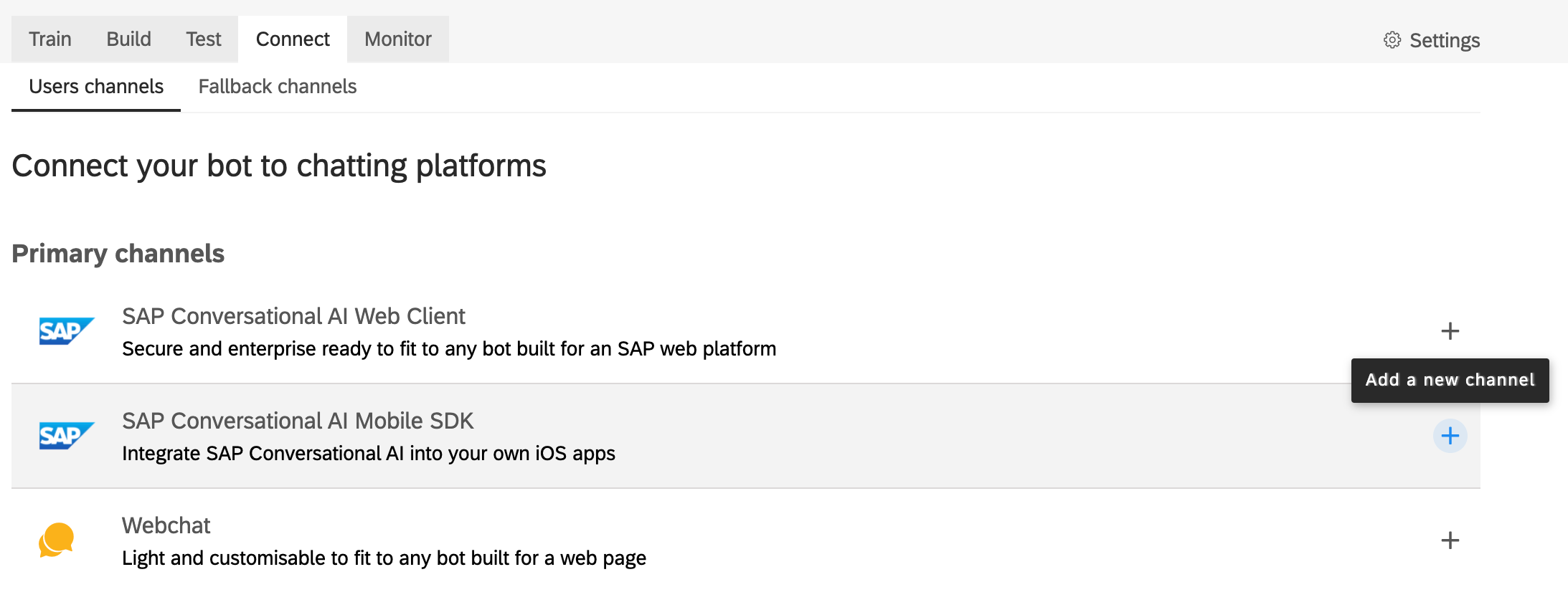
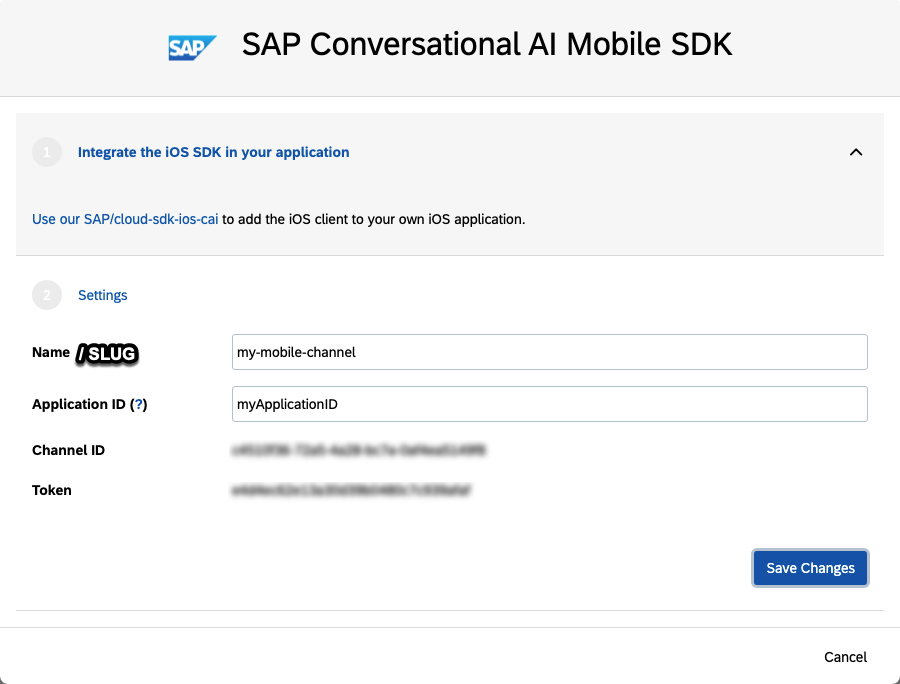
- Your bot(s) are connected to a mobile channel
In SAP Conversational AI you create a mobile channel via the “Connect” tab of your bot.
- SAPCommon for Logging
- SAPFoundation for Network Connectivity and Authentication
- SDWebImage for asynchronous image loading and gif animation in SwiftUI
- Down for Markdown / CommonMark rendering in Swift
The package is intended for consumption via Swift Package Manager. To add SAPCAI to your application target, navigate to the File > Add Packages… >. Use the Search or Enter Package URL field to find the package using the repository URL https://github.com/SAP/cloud-sdk-ios-cai.
You can choose one of the following package products to be added to your application/framework target.
Package Product When to Use SAPCAI You did not already embed binary frameworks from SAP BTP SDK for iOS SAPCAI-requiresToEmbedXCFrameworks You already embedded SAPCommon and SAPFoundation binary frameworks to your target
The code snippet below illustrates setting up the CAIConversation Combine publisher to initialize the MessagingViewModel for the AssistantView. For prototyping you can connect the iOS client directly with SAP Conversational AI Community Edition. You have to replace variable values in angle brackets (e.g. <channelId>) with your bot-specific values.
See the Enterprise Configuration guide for the required configuration steps to use SAPCAI Swift package and connect indirectly with SAP Conversational AI Enterprise Edition through SAP Mobile Services.
Using the SwiftUI implementation is the preferred approach.
but SAPCAI also provides a UIKit wrapper
Once a conversation has ended you need to call the following functions to avoid memory leaks and unnecessary network requests. Also MessagingViewModel cannot be deallocated otherwise.
SAPCAI uses SDWebImage and its image caching capabilities but it is the app developers responsibility to clear the cache if that is desired. Example:
SAPCAI will provide two standard themes
- a Fiori theme and
- a Casual theme (no longer maintained)
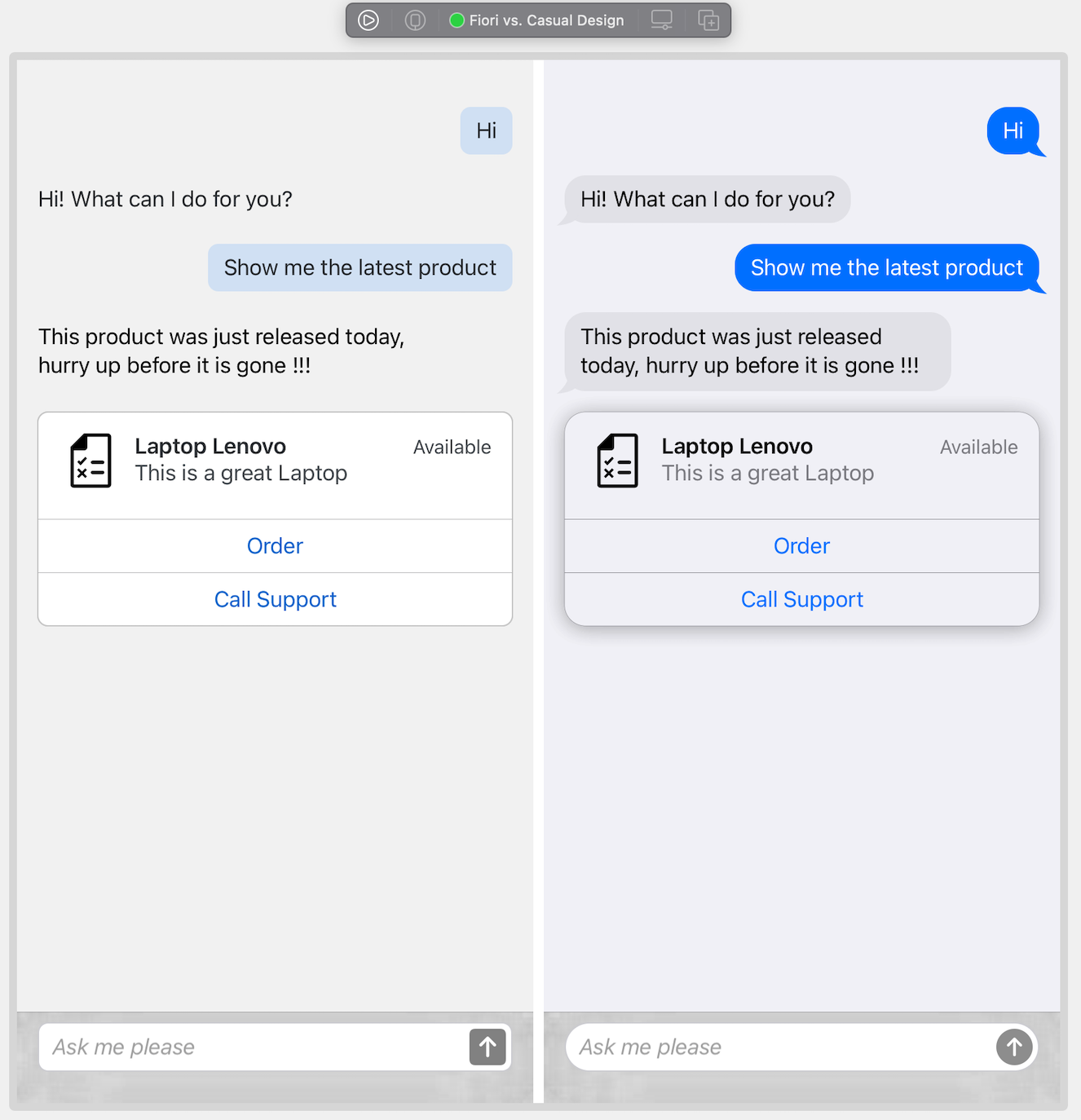
Each theme will come with a color palette that supports both light and dark modes.
No longer maintained and therefore marked as deprecated. Do not use!
You can also provide an alternative color palette or provide a custom theme.
In SAP Conversational AI you can add persistent static menu options to your chatbot enabling your users to quickly trigger links or skills at any point during the conversation.
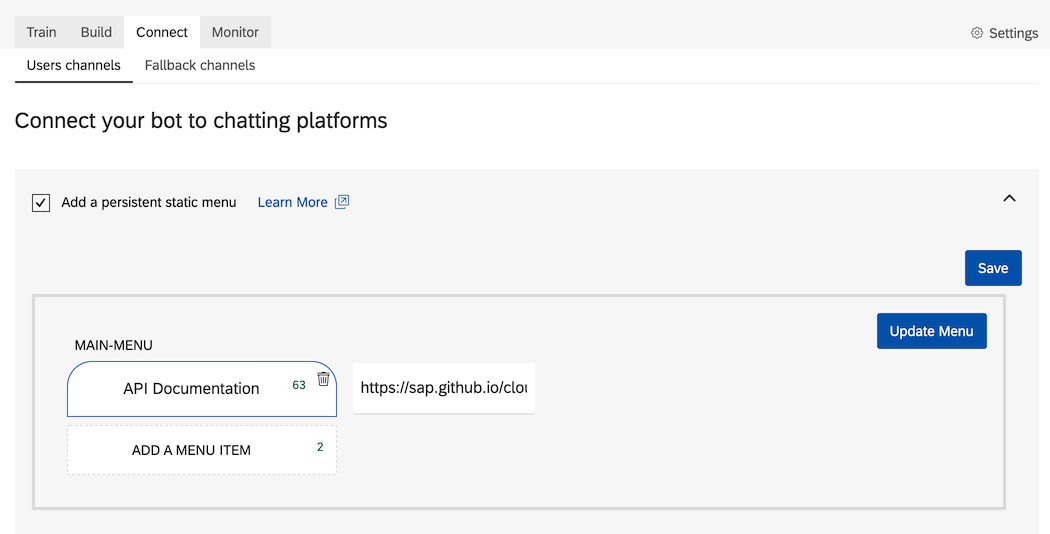
Use CAIChannelService.loadPreferences to fetch your channel’s preferences (incl. the persistent static menu) asynchronously, then set MessagingViewModel.menu.
- No support for GitHub Flavored Markdown (e.g. strikethrough). Bot responses containing Markdown will be rendered by the AssistantView according to the Commonmark specification only, and unknown syntax will be treated as text.
- Trigger Skill buttons are still enabled after execution / next interaction. This behavior differs from the SAP CAI Web Client. Once you click the button or type an utterance, the corresponding skill can’t be triggered anymore at a later point in time since the context in which it was created might not be valid anymore.
- Not being able to save, copy, or share an image as part of a bot response. Currently, there is no gesture handler attached to an image view which could allow opening a contextual menu offering such features (similar to iMessage or WhatsApp).
Please raise an issue on GitHub. SAP customers can continue to report issues through OSS for SLA tracking.
Raise questions around CAI in the SAP CAI Answers forum.
If you want to contribute, please check the Contribution Guidelines.
The CAITestApp in this repository allows you to
- choose a theme
- view static mock data or
- connect against a live system by either
- letting the user choose the mobile channel from the list of available mobile channels for given Application ID (a.k.a targetSystem); note: this illustrates the use of CAIChannelService and how to build a simple SwiftUI view on top of it
- loading the AssistantView for a specific mobile channel
See here on how to maintain connection settings for the test application.